> ## Documentation Index
> Fetch the complete documentation index at: https://docs.sleekchat.ai/llms.txt
> Use this file to discover all available pages before exploring further.
# Phone Call with an AI
> You read that right, in this guide we are going to make a phone call to an AI model.
## Hello AI
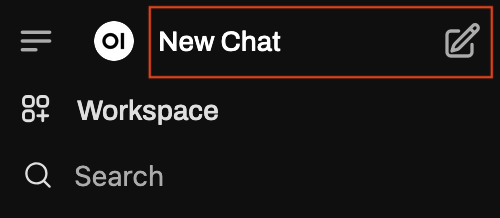
It all starts with the `New Chat` button on the sidebar.
 The same text input field shows up, but this time let's do something different.
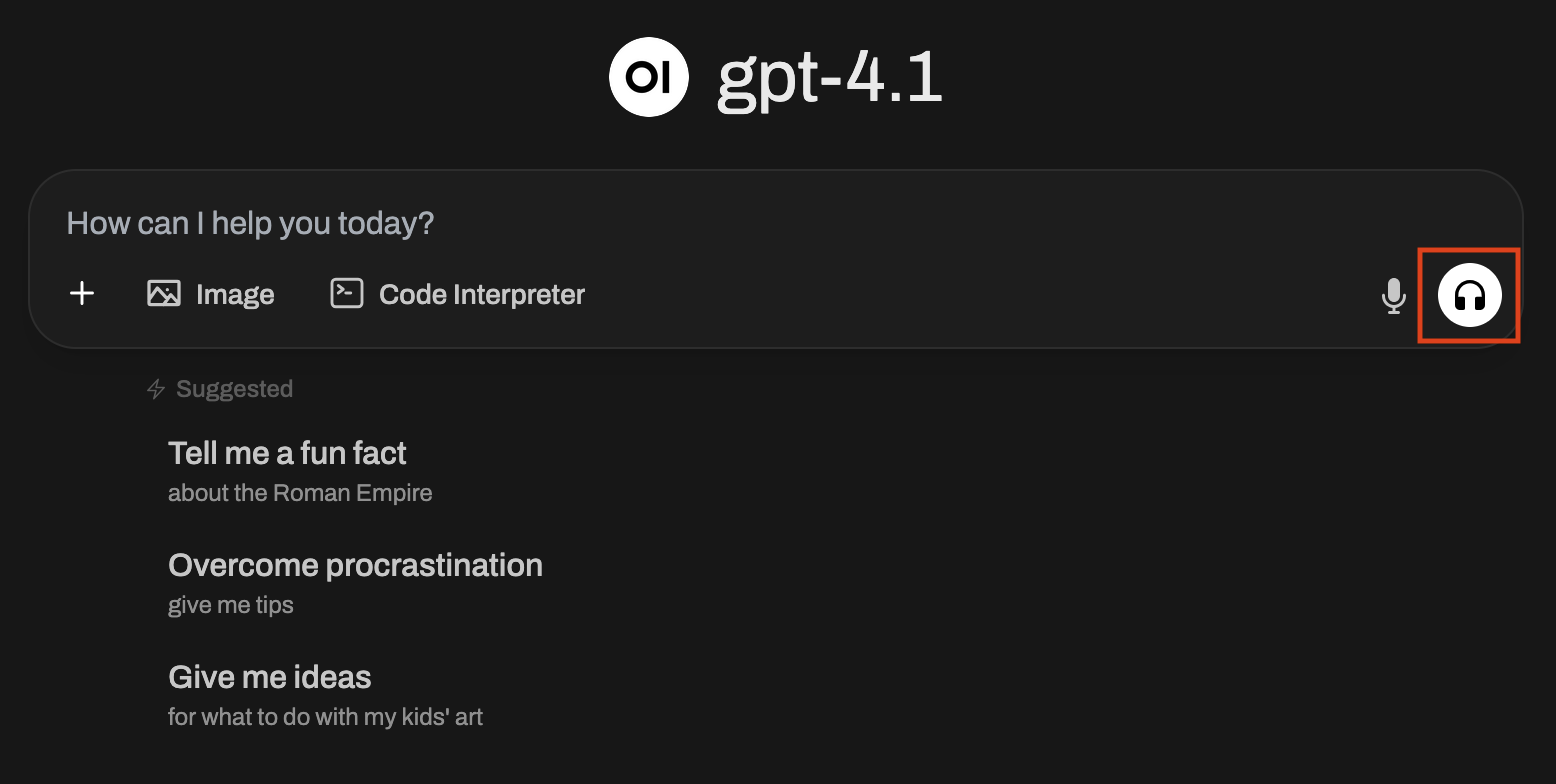 On the right side of the screen, you will see Open WebUI's phone call interface. Go ahead, say something and have fun!
## Speech to Text
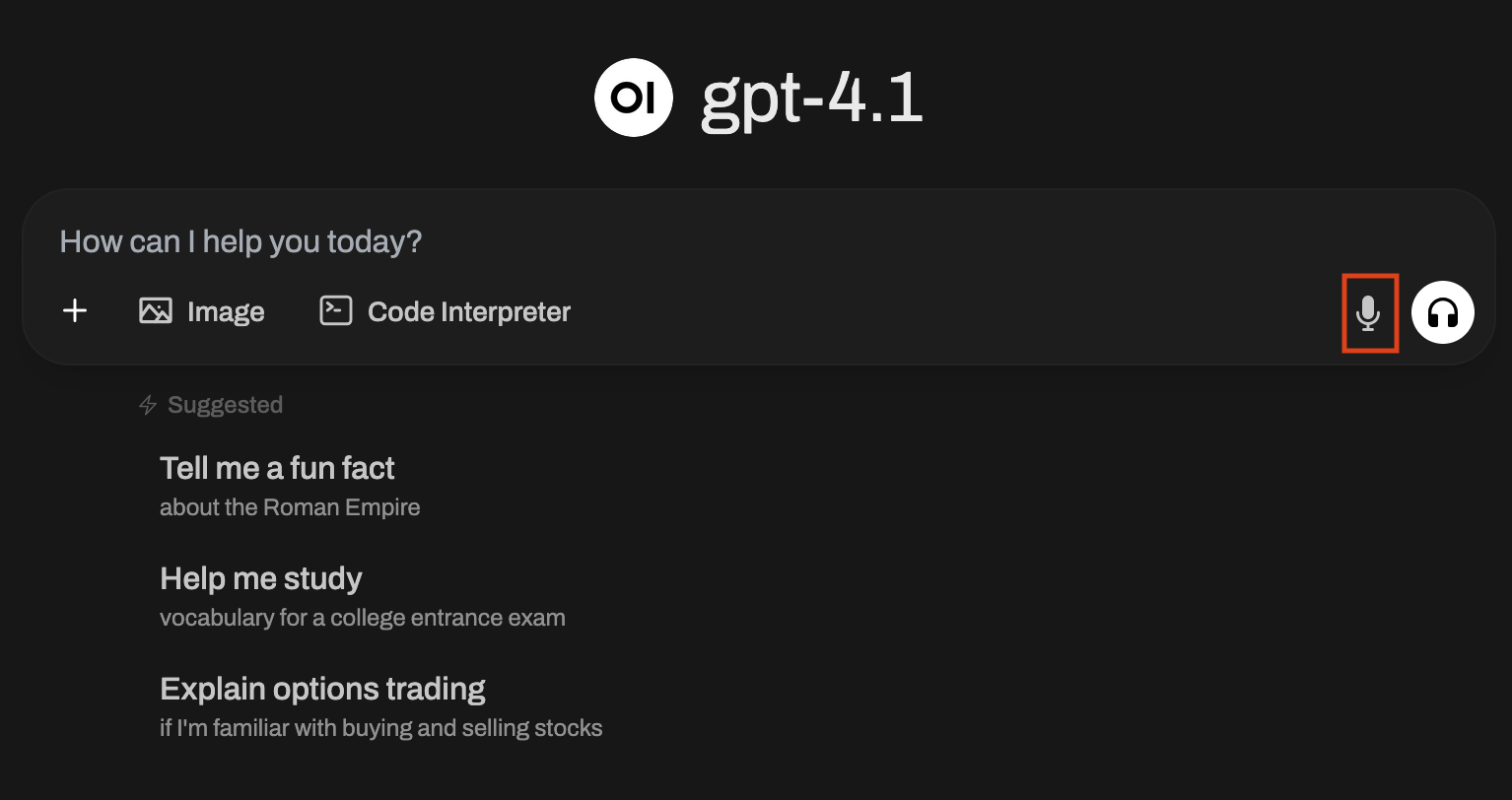
If you'd rather have the conversation 1 way in audio, that is from you to the AI, you can do that too.
On the right side of the screen, you will see Open WebUI's phone call interface. Go ahead, say something and have fun!
## Speech to Text
If you'd rather have the conversation 1 way in audio, that is from you to the AI, you can do that too.