> ## Documentation Index
> Fetch the complete documentation index at: https://docs.sleekchat.ai/llms.txt
> Use this file to discover all available pages before exploring further.
# Inviting Friends
> Learn how to invite your friends to join your Open WebUI instance.
## Inviting Friends
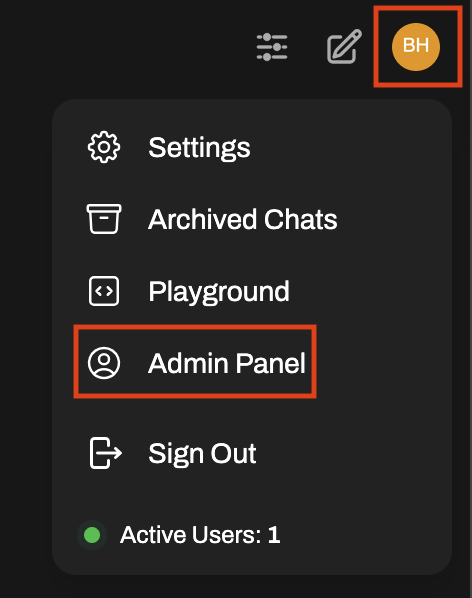 A new page will render with a list of the currently registered users in your Open WebUI instance. You can use this page to add users as you like.
Either adding a single user or multiple users, when you finished adding users, you will be taken back to the users list.
### Adding a Single User
Click on the `+` button on the top right corner of the page to show the `Add User` modal window.
In the `Role` field, select the role you want to assign to the user. The options are `pending`, `user` and `admin`.
Any user you set as `pending` will not be able to log in until you change their role to either `user` or `admin`.
In the `Name` field, type in the name of the user you want to add.
In the `Email` field, type in the email address of the user you want to add.
In the `Password` field, type in the password of the user you want to add.
Click on the `Save` button on the bottom right corner of the modal window.
### Adding Multiple Users
Click on the `+` button on the top right corner of the page to show the `Add User` modal window.
Instead of using the `Form` tab, you can use the `CSV Import` tab to add multiple users at once. You can upload a CSV file to do that.
There's a link labeled `Click here to download user import template file` that you can use to download a template CSV file. You can use this file to create your own CSV file with the users you want to add.
Click on the `Save` button on the bottom right corner of the modal window.
A new page will render with a list of the currently registered users in your Open WebUI instance. You can use this page to add users as you like.
Either adding a single user or multiple users, when you finished adding users, you will be taken back to the users list.
### Adding a Single User
Click on the `+` button on the top right corner of the page to show the `Add User` modal window.
In the `Role` field, select the role you want to assign to the user. The options are `pending`, `user` and `admin`.
Any user you set as `pending` will not be able to log in until you change their role to either `user` or `admin`.
In the `Name` field, type in the name of the user you want to add.
In the `Email` field, type in the email address of the user you want to add.
In the `Password` field, type in the password of the user you want to add.
Click on the `Save` button on the bottom right corner of the modal window.
### Adding Multiple Users
Click on the `+` button on the top right corner of the page to show the `Add User` modal window.
Instead of using the `Form` tab, you can use the `CSV Import` tab to add multiple users at once. You can upload a CSV file to do that.
There's a link labeled `Click here to download user import template file` that you can use to download a template CSV file. You can use this file to create your own CSV file with the users you want to add.
Click on the `Save` button on the bottom right corner of the modal window.