> ## Documentation Index
> Fetch the complete documentation index at: https://docs.sleekchat.ai/llms.txt
> Use this file to discover all available pages before exploring further.
# Your First Chat
> Time to get down to starting your very first chat within Open WebUI with an OpenAI model.
Remember it felt empty when you first logged in into Open WebUI? Let's fix that!
## Back To The Chat Interface
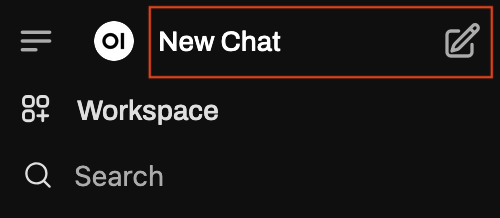
 That button is permanently fixed to the left side of the screen. You can click on it to open or close the sidebar anytime you'd like.
Now that the sidebar is open, let's click on the `New Chat` button to start a new chat.
That button is permanently fixed to the left side of the screen. You can click on it to open or close the sidebar anytime you'd like.
Now that the sidebar is open, let's click on the `New Chat` button to start a new chat.
 Now on the model selector just on the right of the sidebar, you have plenty of models to choose from. For now, let's choose `gpt-4.1`.
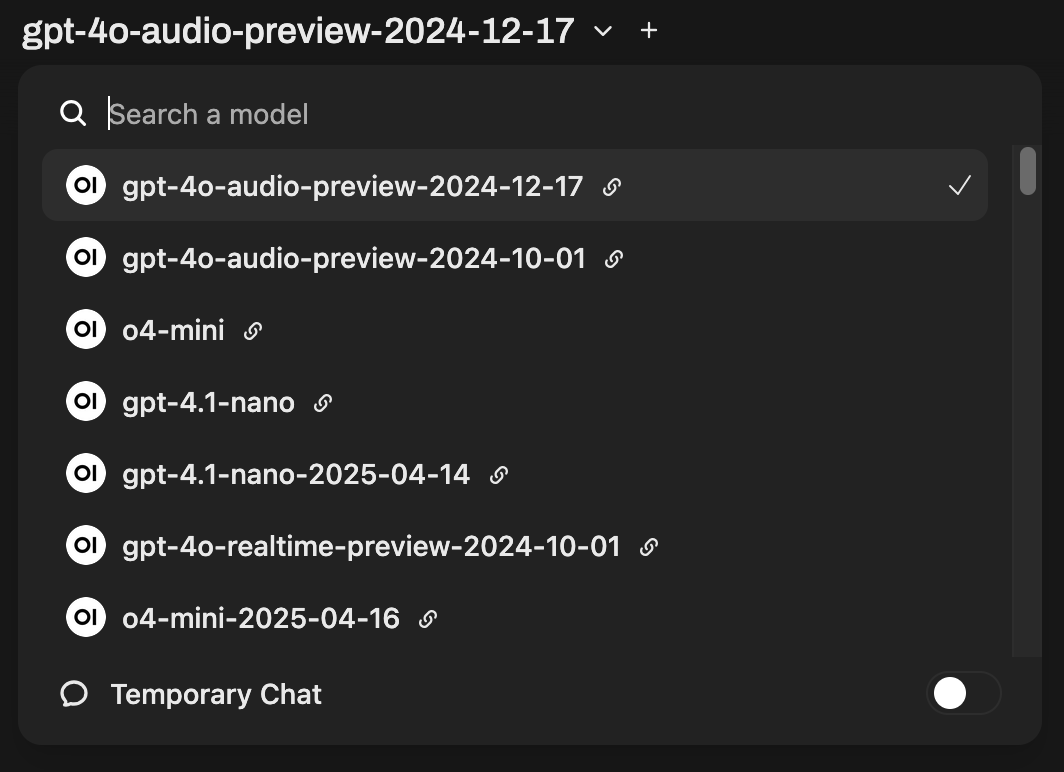 There's a tiny `Set as default` button under the model selector. If you click on it, the model you selected will be set as the default model for all new chats.
### Chatting With a Model
Let's test the intelligence of our newly selected model, I'm going to ask it a very difficult question:
```
How many r's are there in the word strawberry?
```
There's a tiny `Set as default` button under the model selector. If you click on it, the model you selected will be set as the default model for all new chats.
### Chatting With a Model
Let's test the intelligence of our newly selected model, I'm going to ask it a very difficult question:
```
How many r's are there in the word strawberry?
```
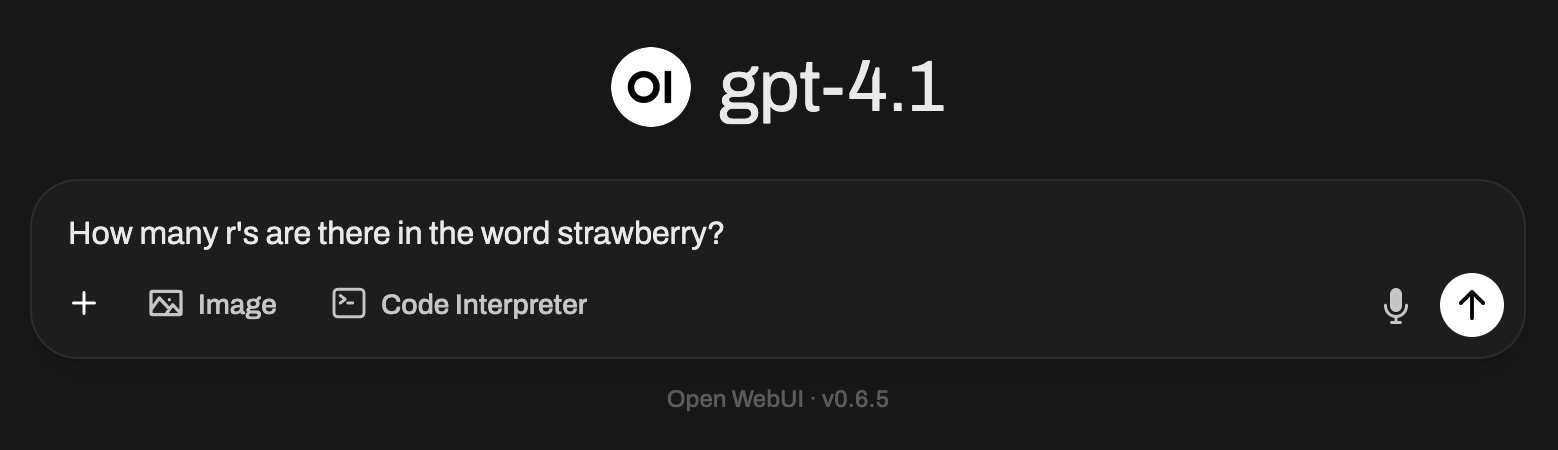 Now hit `Enter`!
Congrats! You have just started your first chat with Open WebUI. You can now start chatting with the AI model and ask it anything you want.
## Multi Modality
As mentioned before, Open WebUI is a multi-modality application. Let's test that out now by using the image generated by it before and ask it what it is.
Now hit `Enter`!
Congrats! You have just started your first chat with Open WebUI. You can now start chatting with the AI model and ask it anything you want.
## Multi Modality
As mentioned before, Open WebUI is a multi-modality application. Let's test that out now by using the image generated by it before and ask it what it is.
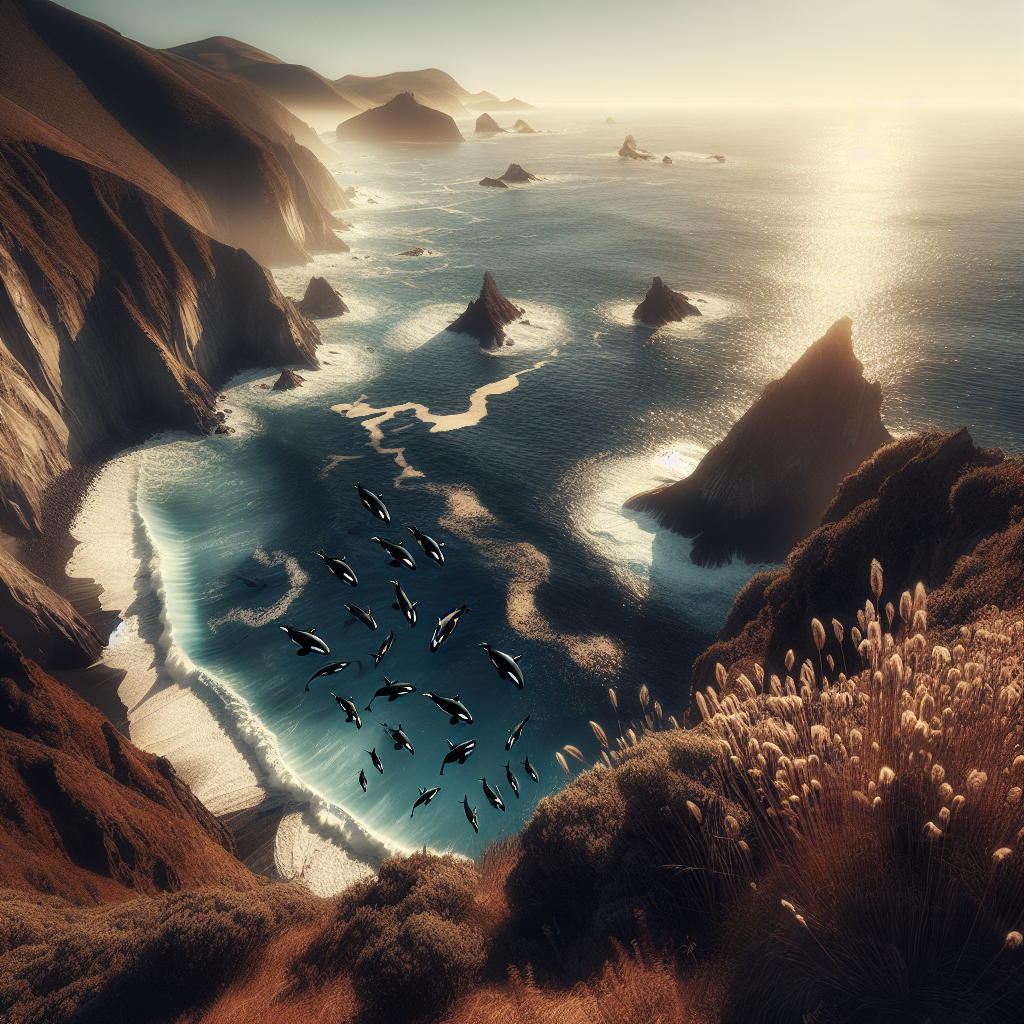 Drag and drop the image into the chat window and your input field will look like this:
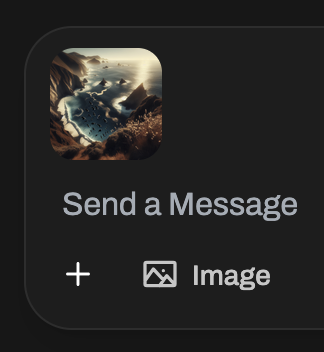 Let's ask it what that image is with this prompt:
```
What is this image about?
```
Now hit `Enter`!
Congrats! You have just awarded yourself with the `Multi Modal` badge! (Just kidding, there is no such thing as a badge in Open WebUI yet. But you can brag about it!)
Let's ask it what that image is with this prompt:
```
What is this image about?
```
Now hit `Enter`!
Congrats! You have just awarded yourself with the `Multi Modal` badge! (Just kidding, there is no such thing as a badge in Open WebUI yet. But you can brag about it!)