> ## Documentation Index
> Fetch the complete documentation index at: https://docs.sleekchat.ai/llms.txt
> Use this file to discover all available pages before exploring further.
# Create an OpenAI API Key
> Learn how to create your own OpenAI API key for use in Open WebUI. A few simple steps to get started and you will be ready to go!
## OpenAI Console
If you already have your OpenAI API key, you can skip this section. Otherwise, let's walk through the steps to get your OpenAI API key.
Go to the [OpenAI Console](https://platform.openai.com/docs/overview) where on the top right corner, you will see a button to sign up or sign in. If you don't have an account, click on the **Sign Up** button and follow the instructions to create an account.
 Don't worry about the developer focused content, you will be able to use the OpenAI API without any programming knowledge. Once you have signed up, you will be taken to the OpenAI Console.
After you are signed in, you will see a gear icon on the top right corner, click on it to open the settings menu.
Don't worry about the developer focused content, you will be able to use the OpenAI API without any programming knowledge. Once you have signed up, you will be taken to the OpenAI Console.
After you are signed in, you will see a gear icon on the top right corner, click on it to open the settings menu.
 There are 2 options for the API keys, you can create an organization wide key or a project wide key. For the sake of this tutorial, we will create an organization wide key.
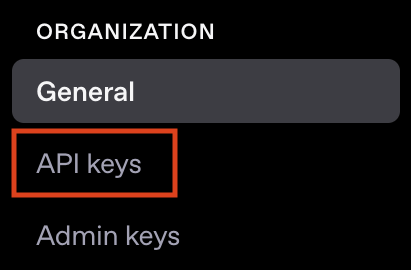 You will see a button on the top right corner. Click on the **Create new secret key** button.
 A modal window will then pop up asking you to name your API key. You can name it anything you want, but for the sake of this tutorial, we will name it **Open WebUI**. Click on the **Create secret key** button to create the API key.
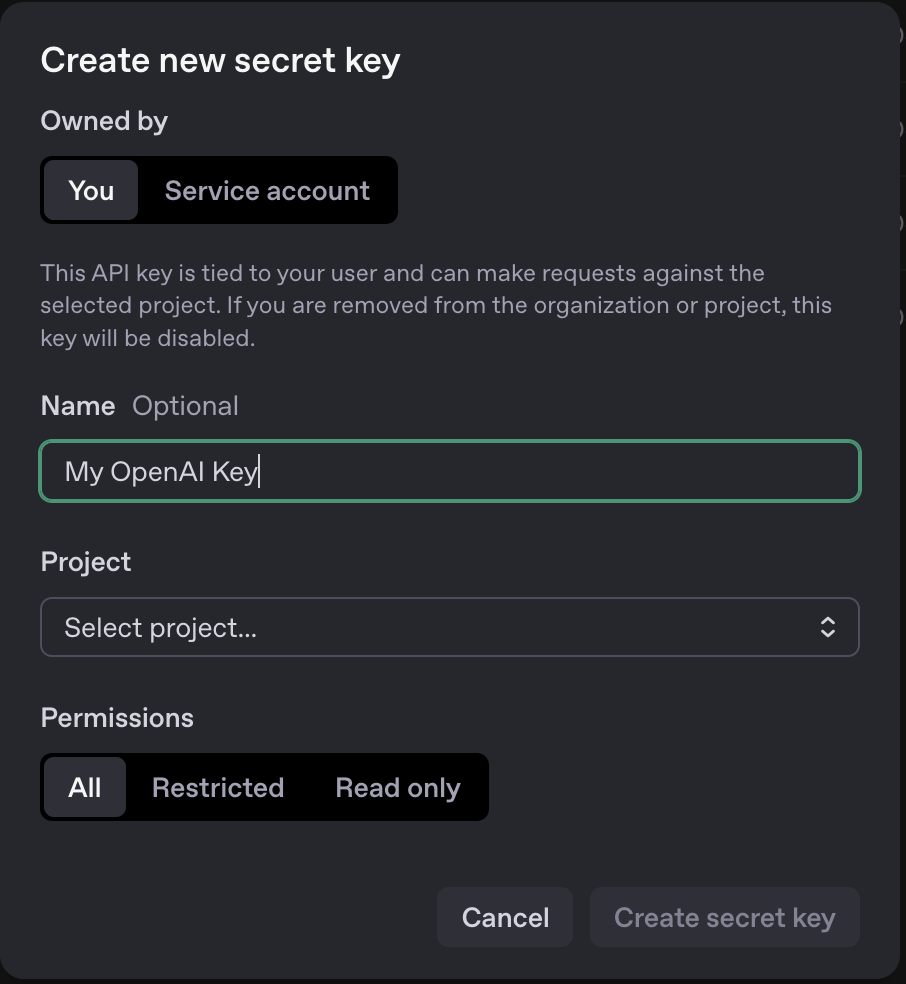 In the `Owned by` field, select `You`.
You can set any arbitrary name for your API key.
In the Project field, you can choose the `Default Project`.
For the `Permissions` field, let's select `All`.
Click on the `Create secret key` button on the bottom right corner of the modal window.
In the `Owned by` field, select `You`.
You can set any arbitrary name for your API key.
In the Project field, you can choose the `Default Project`.
For the `Permissions` field, let's select `All`.
Click on the `Create secret key` button on the bottom right corner of the modal window.
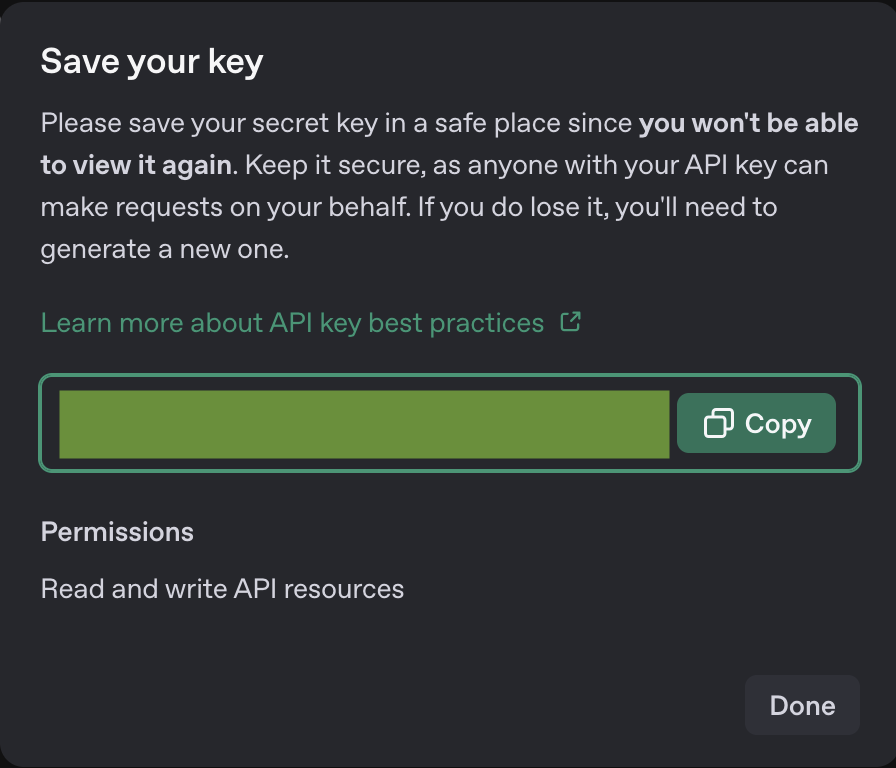 ### Important Note About API Keys
Never share the API keys you have created with anyone. Store it somewhere safe. For more information, follow OpenAI's best practice below:
[OpenAI API Key Best Practices](https://help.openai.com/en/articles/5112595-best-practices-for-api-key-safety)
## Congrats!
You are now done creating your own OpenAI API key. Let's move on to the next step and configure Open WebUI with your OpenAI API key.
### Important Note About API Keys
Never share the API keys you have created with anyone. Store it somewhere safe. For more information, follow OpenAI's best practice below:
[OpenAI API Key Best Practices](https://help.openai.com/en/articles/5112595-best-practices-for-api-key-safety)
## Congrats!
You are now done creating your own OpenAI API key. Let's move on to the next step and configure Open WebUI with your OpenAI API key.